Revolutionize your track riding.

The new Corner-by-Corner feature allows you to automatically customize the vehicle's electronics for every single corner of the track.

A simple process, total control.

We designed an intuitive user experience to give you maximum performance with minimum effort. Discover how to configure your setup in just a few steps.

STEP 1

Access the feature

The first step is to connect the app to the vehicle. To establish the initial connection, you'll need to 'pair' your phone: enter the pairing menu on the dashboard while simultaneously keeping your phone's Bluetooth settings open to make it discoverable.

Once pairing is complete, you can access the "Corner by Corner" section to start creating your setup.
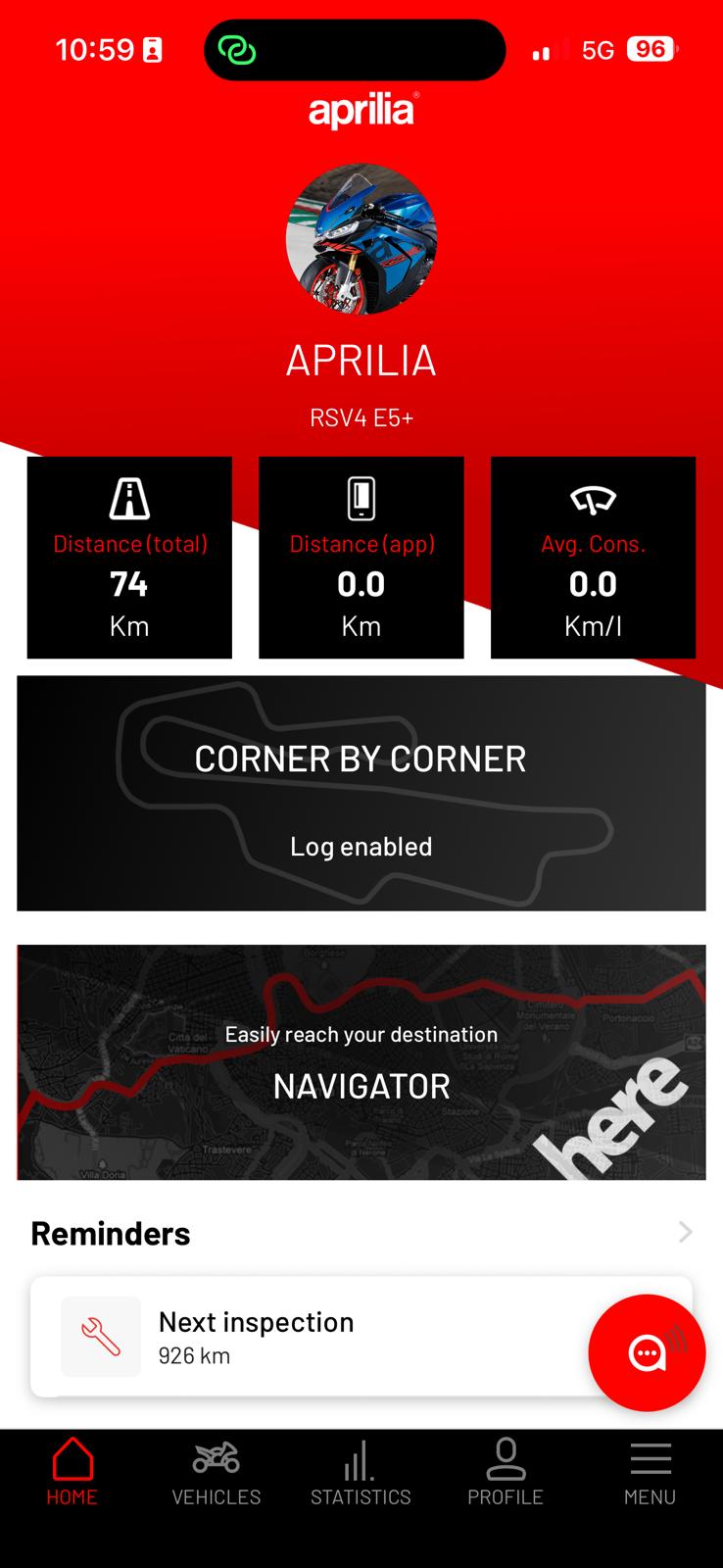
App dashboard screenshot

STEP 2

Choose your track

Search and download the track you want to ride on from our library, which is constantly updated with the world's most famous circuits.

If you can't find the track you're looking for, you can request it by sending an email to multimedia@piaggio.com; our team will make it available within a few days.
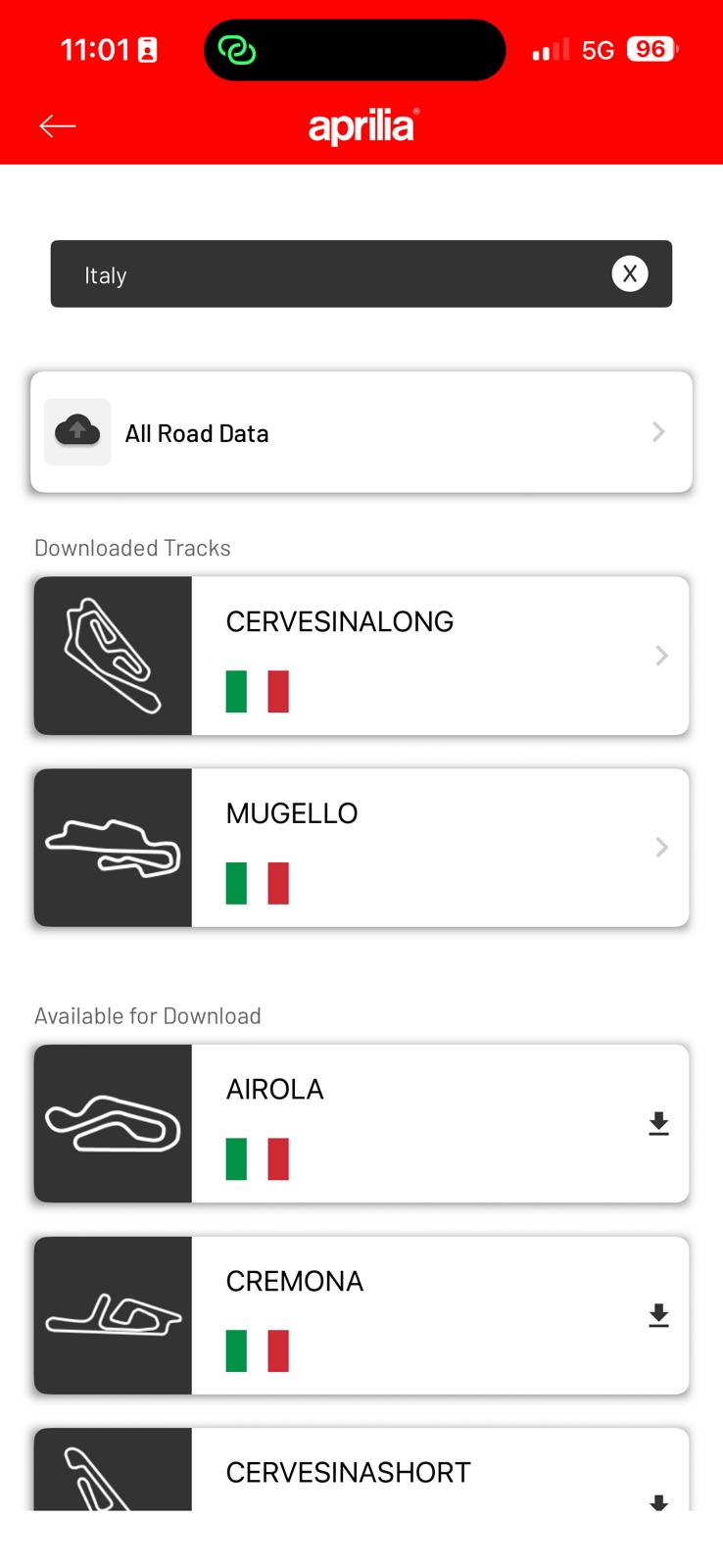
Track selection screenshot

STEP 3

Create a new setup

Within the track screen, you can create different configurations. Start by adding a new setting, for example, "Dry" for dry conditions or "Wet" for wet conditions.
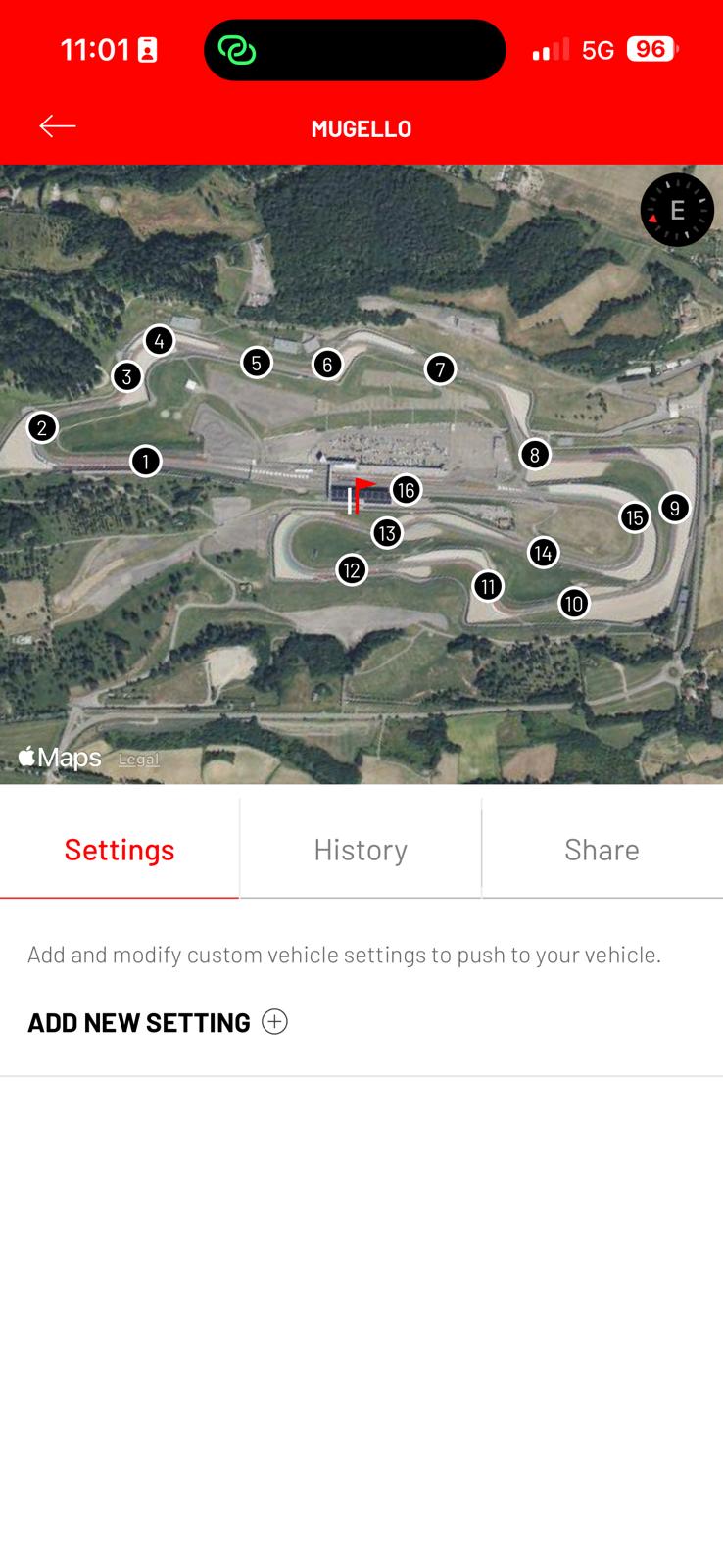
Screenshot of adding a new setting

STEP 4

Edit every single corner

This is the core of the feature. Select a specific sector of the track and fine-tune electronic parameters like AWC, ATC, and AEB. The app will automatically apply these changes as the vehicle passes through that point.
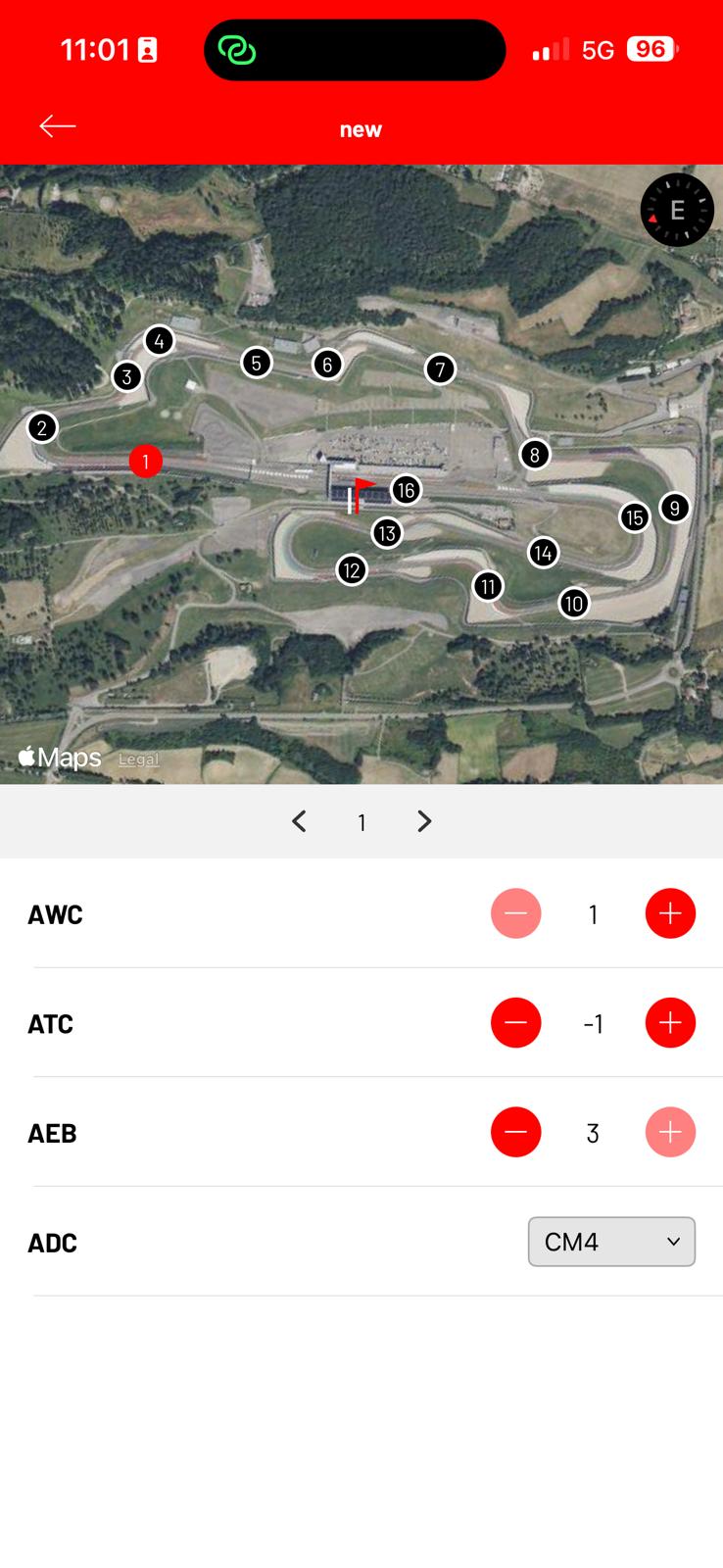
Screenshot of parameter adjustment per sector

STEP 5

Save and send to the vehicle

After configuring each corner, you get a complete overview of the setup. With a single tap, you can save and send the settings directly to the vehicle's ECU.
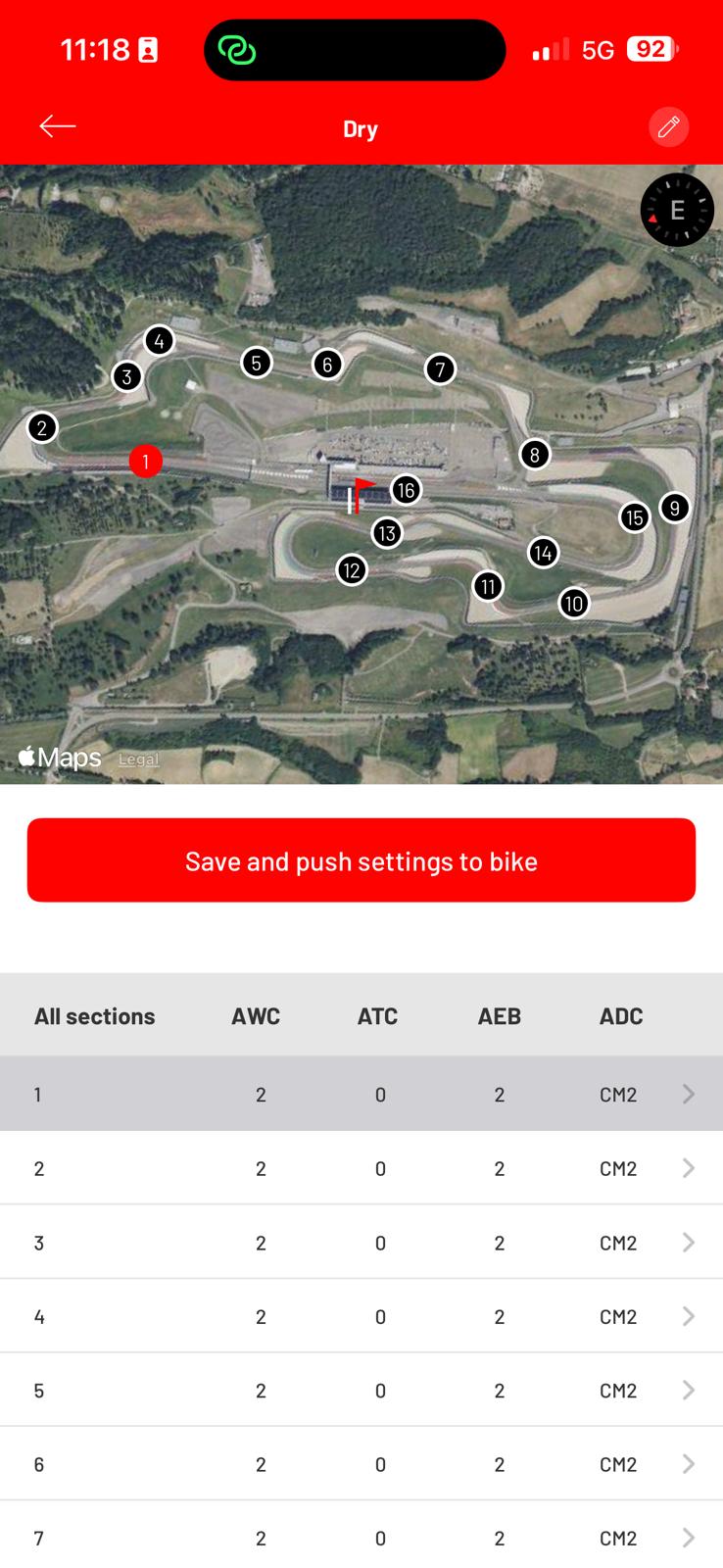
Settings summary screenshot

STEP 6

Ready to hit the track!

The app confirms that the settings have been successfully transferred. Your vehicle is now ready: the electronics will adapt to your riding style, corner after corner, without you having to do anything else.
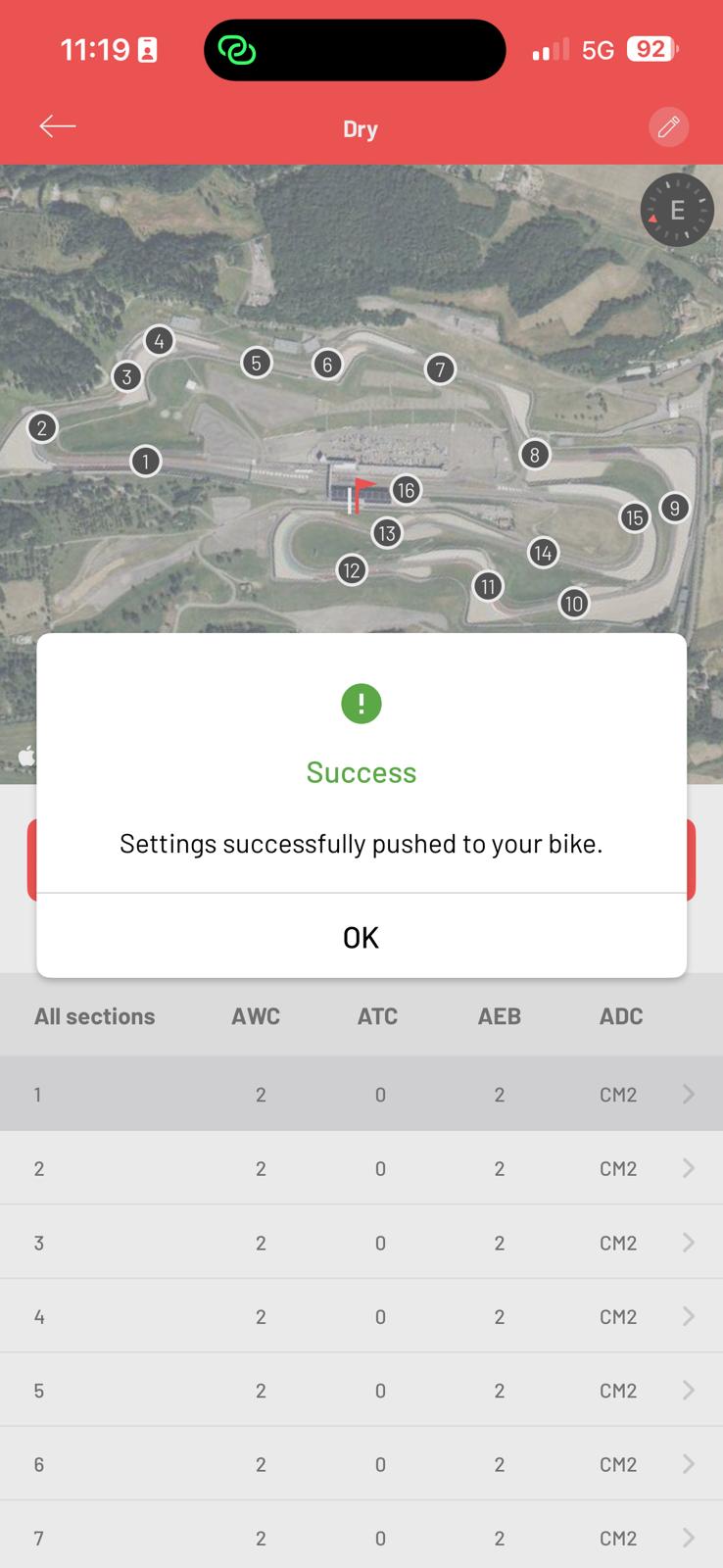
Success message screenshot

Important notes for a perfect setup

1. Saving vs. Sending Data

To send data to the bike, a connection to the app is crucial. To connect, press the circular button at the bottom right of the home screen. If not connected, you can save setups on your phone, but they will not affect the bike.

Home screen with connection button highlighted

2. Enabling and Operation

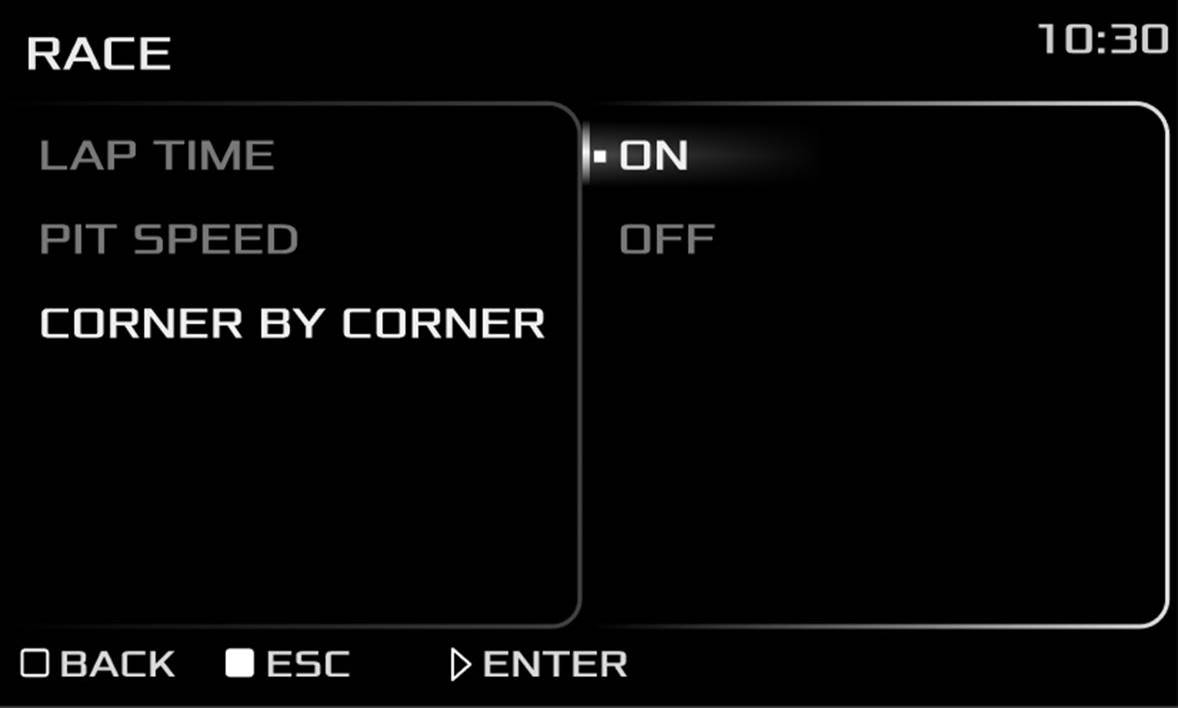
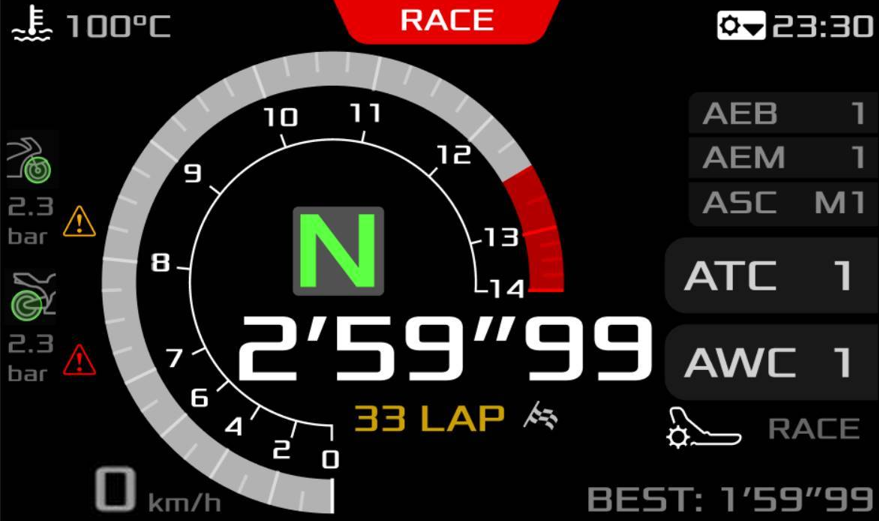
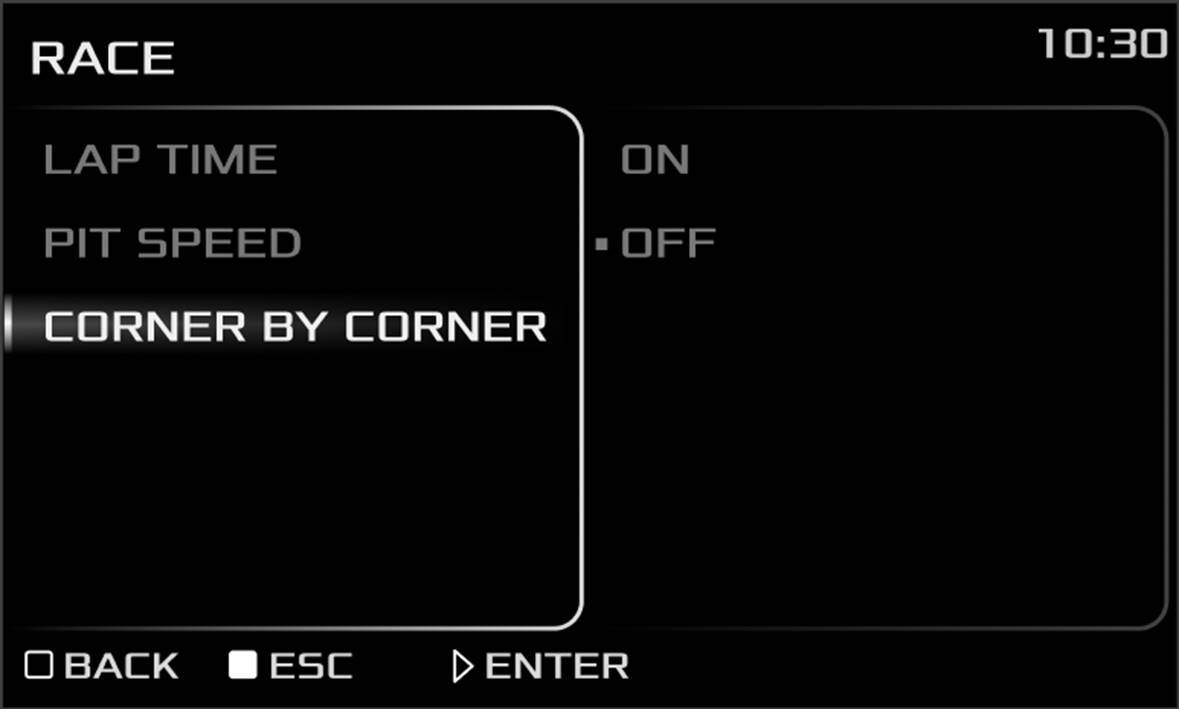
For correct operation, it's essential to follow two steps before hitting the track: enable the "Corner by Corner" feature from the dashboard menu and set the riding mode to RACE.

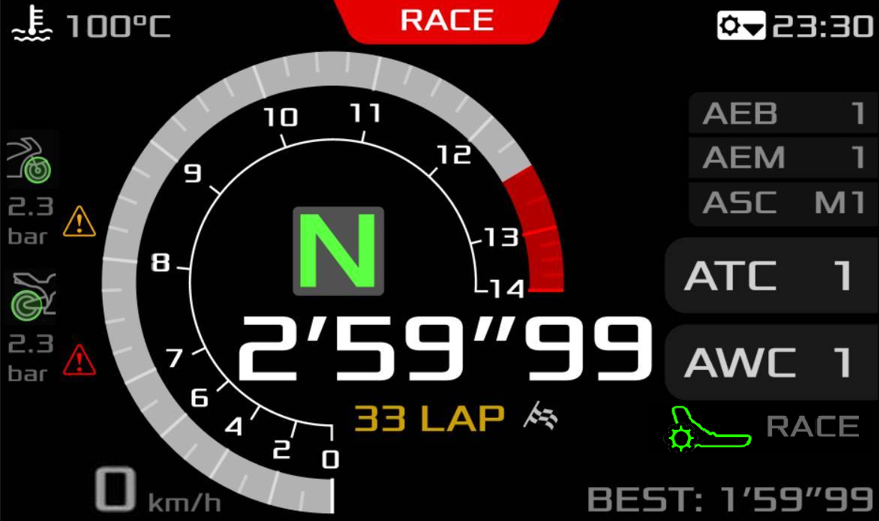
The system will activate automatically on the first pass over a finish line or intermediate timing point on the circuit, which you'll notice when the icon on the dashboard switches from yellow to green.

Remember that if you change the riding mode, the feature will be disabled to allow for manual adjustments.

If you choose not to enable the feature, the bike's GPS will operate in standard mode. It will record telemetry and function as a normal GPS lap timer, calculating lap times but without modifying parameters corner by corner. This basic functionality is also available on models not equipped with the Race Pack.

Corner by Corner feature disabled
Enabling Corner by Corner feature
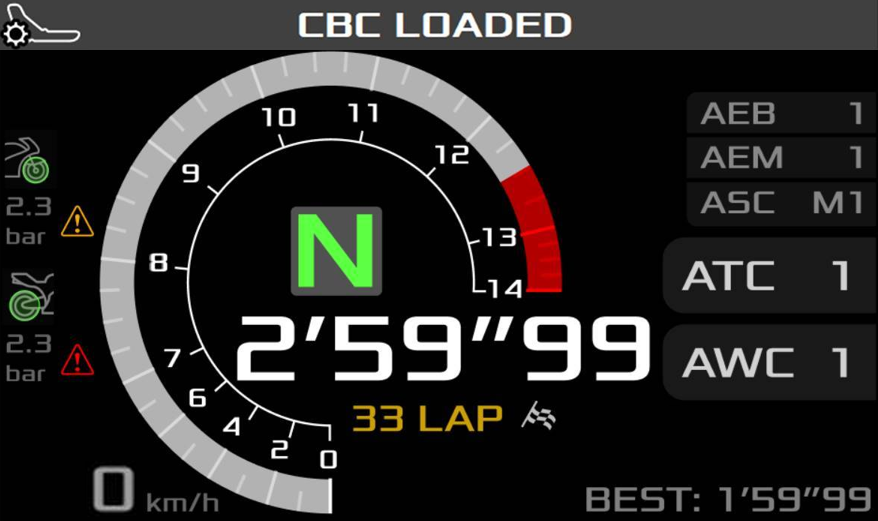
Corner by Corner setup loaded
Base dashboard in Race mode
Dashboard ready with Corner by Corner active

3. Data Analysis and Telemetry

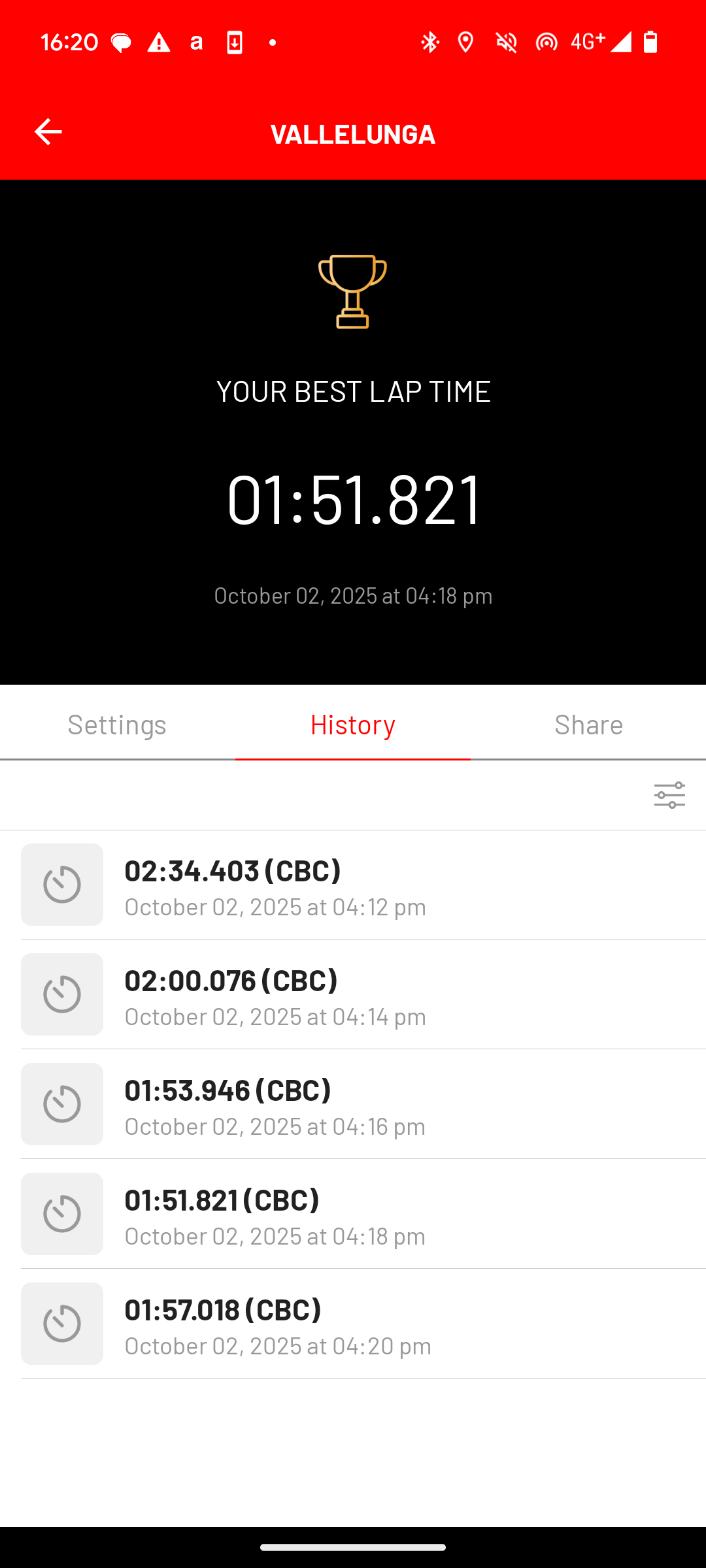
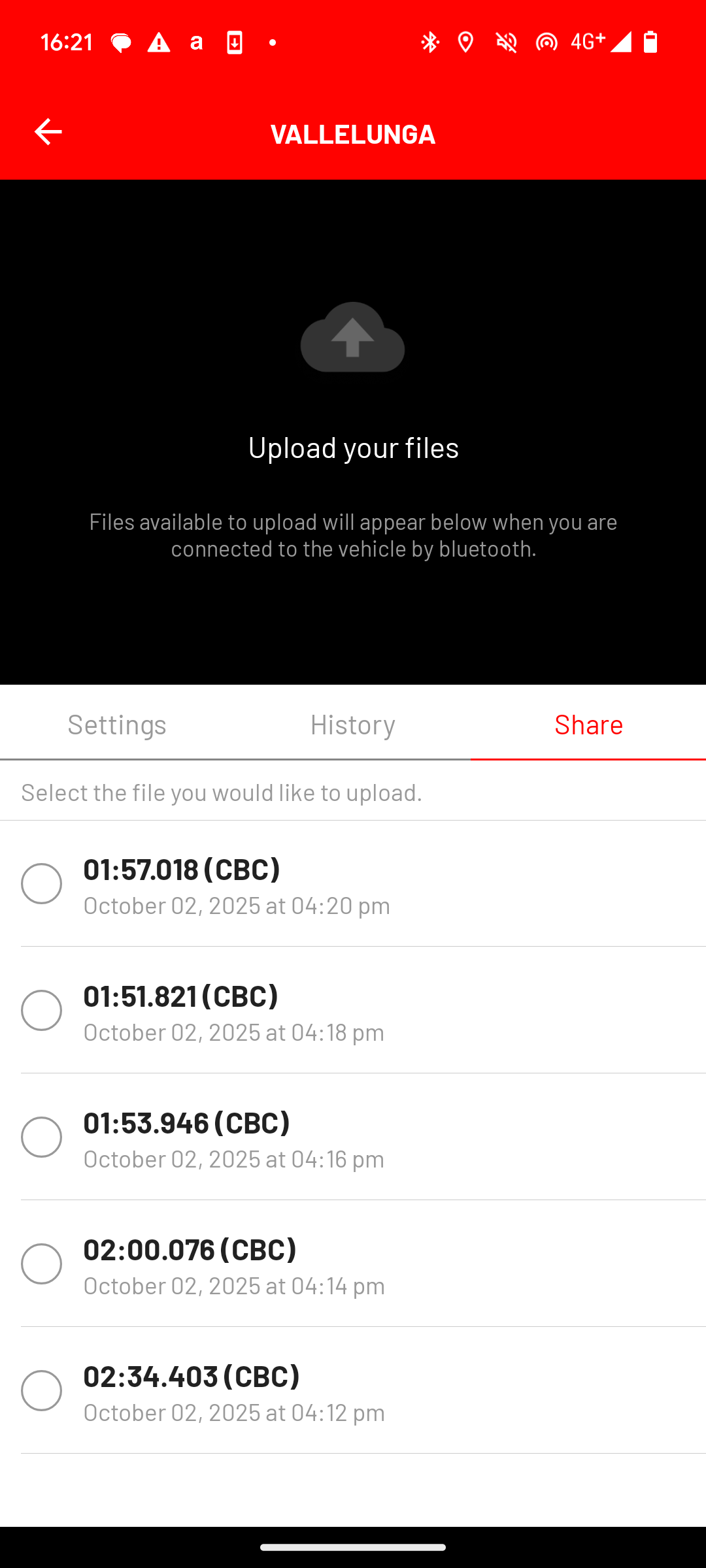
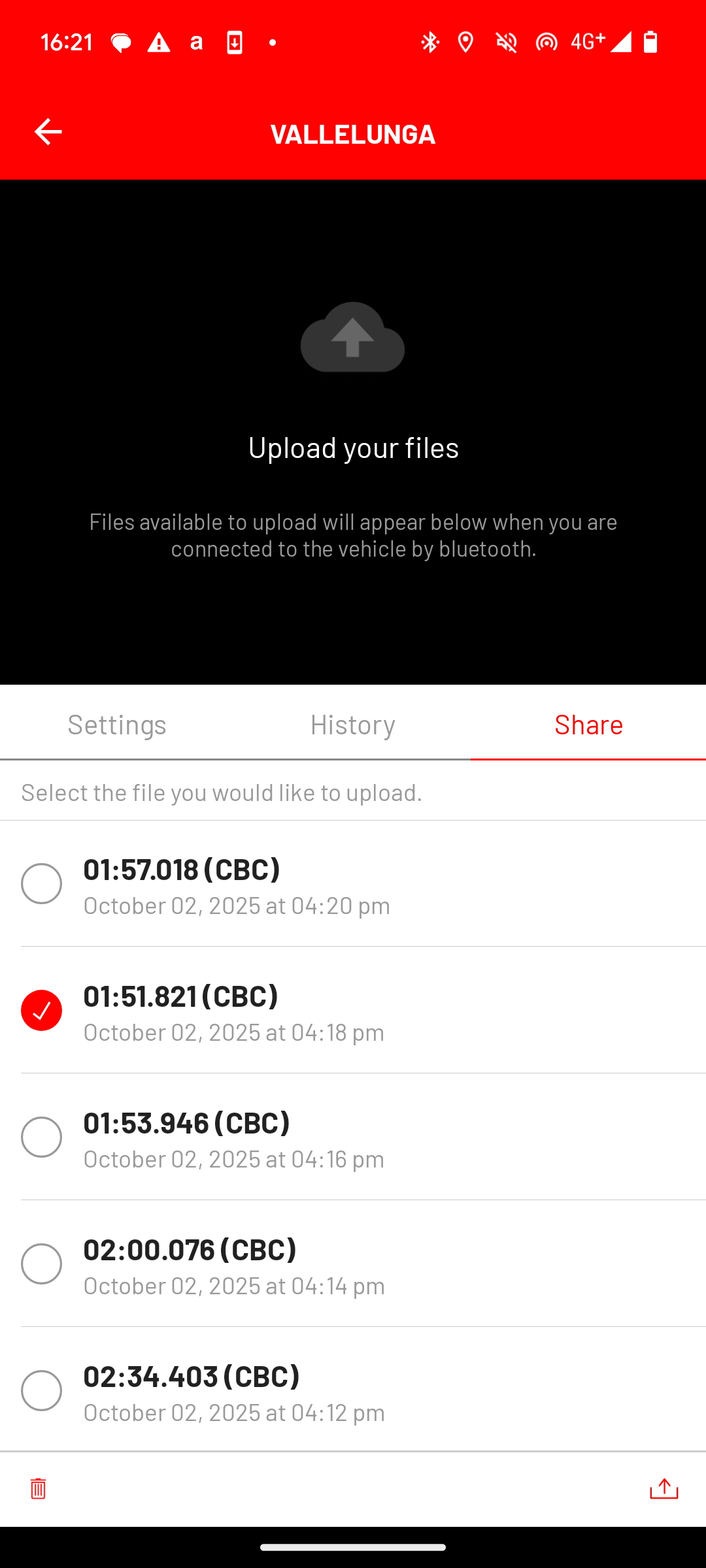
The system records telemetry for each lap. To get lap-by-lap data, it is essential to have the track you are riding on loaded. Once connected to the vehicle, you can export the data in .vbo format, which is compatible with professional analysis software from Racelogic (VBOX & Circuit Tools).

If no track is loaded, the data is still saved in a single file cataloged as 'road', without the lap-by-lap breakdown.

Lap history view
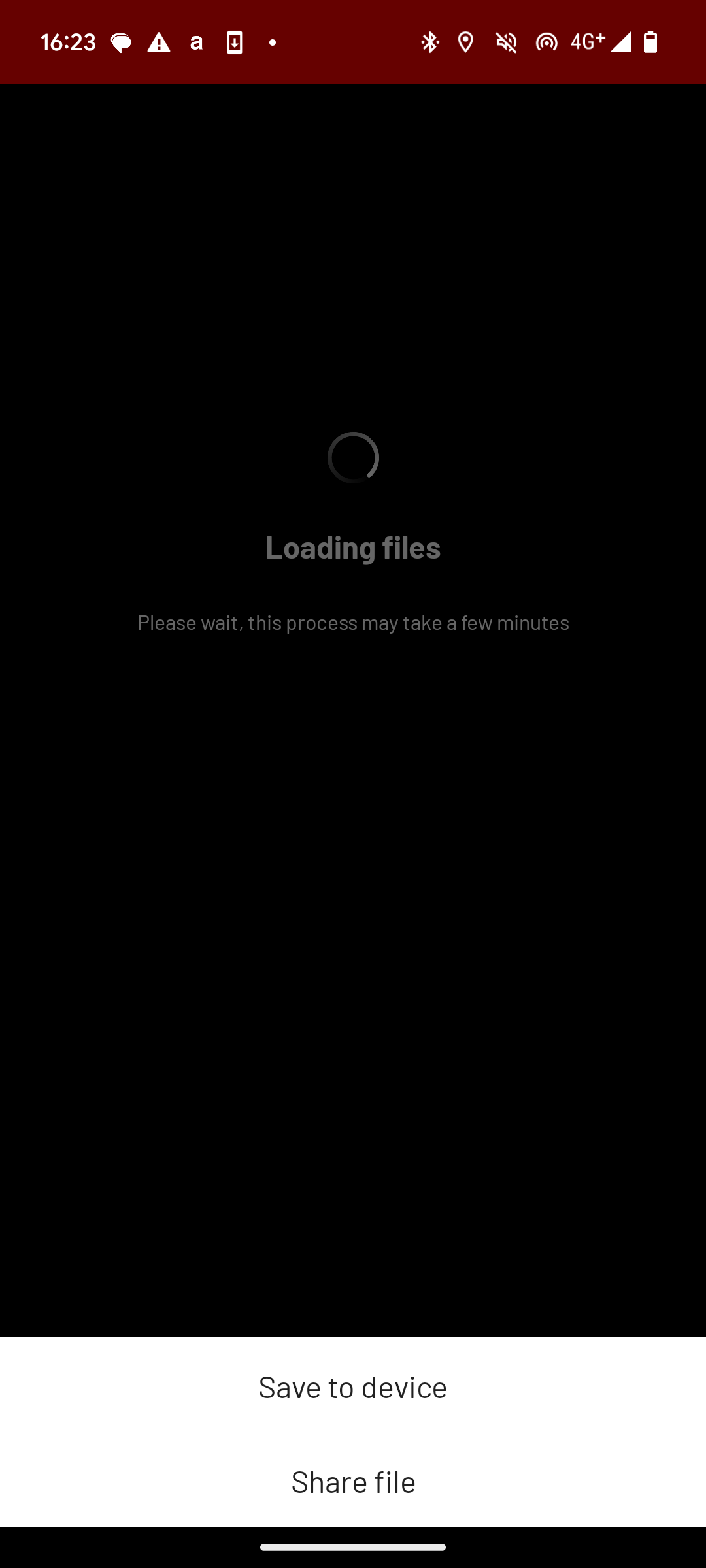
Selecting file to share
Telemetry file selected
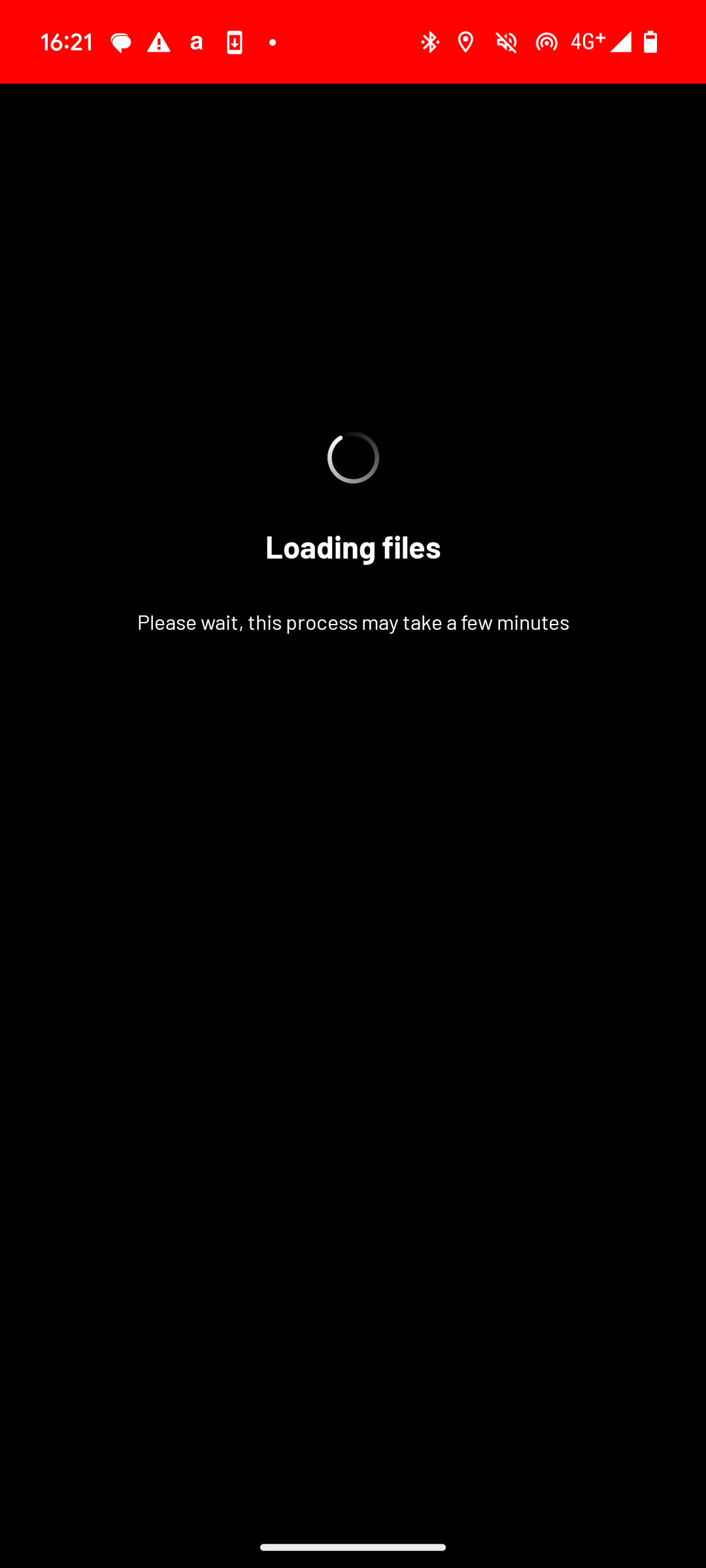
File upload in progress
Save and share options
Download Sample .VBO File

4. Memory Reset

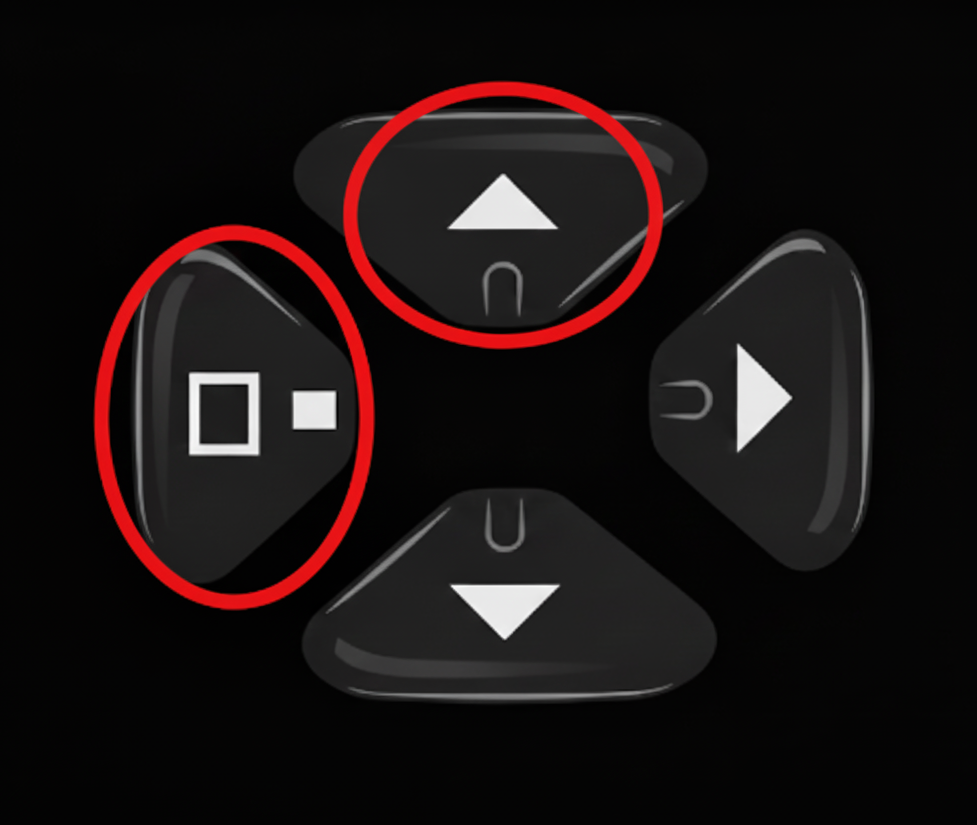
To clear all recorded data, press and hold the up and left buttons on the left-hand handlebar controller simultaneously for 10 seconds.

This action can also resolve potential memory corruption issues, often indicated by the continuous rebooting of the on-board device.

Once the data is cleared, you will need to delete and re-pair the app to restore full functionality.

Memory reset procedure

The future of performance is here.

MotoGP technology, now available for all enthusiasts.